
71
Staxofsax workshop from 2012 to 2024 / Thirsk StaxofSax workshop 3rd ...
Last post by Tony Edge - January 13, 2013, 10:18:07 PMThirsk StaxofSax workshop 3rd March 2013
Yorkshire is calling again, so on the 3rd of March 2013 staxofsax team are heading to the Rural Arts Centre in Thirsk for the 2nd workshop at that venue. They will use a similar format of large and small ensemble playing along with an improvisation session in the afternoon. In October at least half of the 18 attendees had not improvised before. They all came away very enthusiastic about it.
The Rural Arts Centre is a lovely venue with a great Caf?.
http://www.ruralarts.org/?page_id=61

Cost of the day is the same as last time, ?30 per person. Start time 10am and finish at 3pm.
If you want to ask more questions or book a place, visit Dave Plummer?s Blog for contact details http://daveplummer.net/blog/
Check out the staxofsax facebook page or http://daveplummer.net/blog/
for details of previous events.
Yorkshire is calling again, so on the 3rd of March 2013 staxofsax team are heading to the Rural Arts Centre in Thirsk for the 2nd workshop at that venue. They will use a similar format of large and small ensemble playing along with an improvisation session in the afternoon. In October at least half of the 18 attendees had not improvised before. They all came away very enthusiastic about it.
The Rural Arts Centre is a lovely venue with a great Caf?.
http://www.ruralarts.org/?page_id=61
Cost of the day is the same as last time, ?30 per person. Start time 10am and finish at 3pm.
If you want to ask more questions or book a place, visit Dave Plummer?s Blog for contact details http://daveplummer.net/blog/
Check out the staxofsax facebook page or http://daveplummer.net/blog/
for details of previous events.
72
Band In a Box / How do I keep all my computers...
Last post by Tony Edge - January 12, 2013, 08:31:35 PMHelp! How do I keep all my computers up to date with my latest music?
By using a free Synchronisation program together with an external usb drive, or memory stick, with just a few clicks.
Folders will be automatically updated on both computers
The program SYNKRON is a free application and saves many hours of copying individual files.
Dowload from
http://synkron.sourceforge.net/
Synkron is a simple Qt application designed for easy folder synchronisation.
This programme is distributed under the terms of the GPL v2.
2005-2013 Mat?? Tomlein.
By using a free Synchronisation program together with an external usb drive, or memory stick, with just a few clicks.
Folders will be automatically updated on both computers
The program SYNKRON is a free application and saves many hours of copying individual files.
Dowload from
http://synkron.sourceforge.net/
Synkron is a simple Qt application designed for easy folder synchronisation.
This programme is distributed under the terms of the GPL v2.
2005-2013 Mat?? Tomlein.
73
Local musical events / StaxofSax workshop, Thirsk 3rd...
Last post by littleplum - January 10, 2013, 09:15:26 PMHi Folks
After the success of our last StaxofSax workshop in Thirsk, I wanted to let you know that we have booked another one. This is happening on the 3rd of March 2013 at the Rural Arts Centre in Thirsk.
This is a great venue with a lovely Cafe for lunch and they made us feel very welcome in October.
We had a lovely day last time and met some great people, and made some excellent music.
This event will be run on similar lines, with large and small ensemble work and an improvisation session in the afternoon.
It is open to players of all abilities as long as you have been playing for 12 months or more and are aged 11 or above.
Parts are sent out before hand to give you chance to practice before the day.
We start playing at 10am and finish at 3pm with 30 mins for lunch in the cafe.
Cost of the day is ?30 per person and we limit the event to 20 players so that we can get around to those that need help.
It would be lovely to see some of you for this workshop, if you feel that you are interested you cn contact me on 07736 471861 or staxofsax@gmail.com
best wishes
Dave Plummer
check out staxofsax page on facebook or www.daveplummer.net
After the success of our last StaxofSax workshop in Thirsk, I wanted to let you know that we have booked another one. This is happening on the 3rd of March 2013 at the Rural Arts Centre in Thirsk.
This is a great venue with a lovely Cafe for lunch and they made us feel very welcome in October.
We had a lovely day last time and met some great people, and made some excellent music.
This event will be run on similar lines, with large and small ensemble work and an improvisation session in the afternoon.
It is open to players of all abilities as long as you have been playing for 12 months or more and are aged 11 or above.
Parts are sent out before hand to give you chance to practice before the day.
We start playing at 10am and finish at 3pm with 30 mins for lunch in the cafe.
Cost of the day is ?30 per person and we limit the event to 20 players so that we can get around to those that need help.
It would be lovely to see some of you for this workshop, if you feel that you are interested you cn contact me on 07736 471861 or staxofsax@gmail.com
best wishes
Dave Plummer
check out staxofsax page on facebook or www.daveplummer.net
74
Band In a Box / Re: Play Georgia on My Mind wi...
Last post by sue - January 07, 2013, 09:01:27 PMPerfect Time.
Hi Tony
Just been reading Humphrey Lyttelton book the Best of Jazz (published by Portico 423 page papeback) the book is packed with information and the history of Jazz and saxophone.
In the chapter Johnny Hodges and Benny Carter.
Humphrey Lyttelton talks about achieving that particular characteristic of sustained rhythmic
And Perfect Time.
To a musician, this means placing every note, even the most transitory and insignificant, in exactly the right place in relation to the regular four beats to the bar.
This doe?s not necessarily mean 'keeping time' in the sense of neither speeding up nor slowing down.
There are plenty of examples in jazz of solos and ensembles which continue to swing even though there is noticeable accelerating or slowing down of the tempo.
In these instances, as the basic beat changes, the notes continue to relate to it with microscopic accuracy.
A common cause of bad time and consequent lack of swing is poor execution?the failure of the fingers or tongue to articulate accurately the ideas fed to them.
Tony keep playing try to keep time think about what Humph is saying.
Happy New Year
Sue
Hi Tony
Just been reading Humphrey Lyttelton book the Best of Jazz (published by Portico 423 page papeback) the book is packed with information and the history of Jazz and saxophone.
In the chapter Johnny Hodges and Benny Carter.
Humphrey Lyttelton talks about achieving that particular characteristic of sustained rhythmic
And Perfect Time.
To a musician, this means placing every note, even the most transitory and insignificant, in exactly the right place in relation to the regular four beats to the bar.
This doe?s not necessarily mean 'keeping time' in the sense of neither speeding up nor slowing down.
There are plenty of examples in jazz of solos and ensembles which continue to swing even though there is noticeable accelerating or slowing down of the tempo.
In these instances, as the basic beat changes, the notes continue to relate to it with microscopic accuracy.
A common cause of bad time and consequent lack of swing is poor execution?the failure of the fingers or tongue to articulate accurately the ideas fed to them.
Tony keep playing try to keep time think about what Humph is saying.
Happy New Year
Sue
75
Free Computer Music Programs / Re: Recording
Last post by Tony Edge - January 06, 2013, 10:50:26 PM
http://bluemic.com/yeti/
Hi Dave
Many thanks for the advise Audacity is very helpful not only can you hear your tones but you can actually see your sounds
attack, vibrato, breath control length of notes and even compare the notes with an experts audio track.
For the past few months I have been testing the Blue Yeti Usb microphone
With both the saxophone midi keyboard and Pc sound.
The quality of the recordings are very good and can fully recommend the Yeti USB microphone.
Its rather expensive but so easy to use. I purchased this from Maplin.
The price range from ?110 from Amazon to ?140 from local retail stores.
The Yeti is one of the most advanced and versatile multi-pattern USB microphones available anywhere. Combining three capsules and four different pattern settings, the Yeti is an ultimate tool for creating amazing recordings, directly to your computer. With exceptional sound and performance, the Yeti can capture anything with a clarity & ease unheard of in a USB microphone.
The Yeti features Blue's innovative triple capsule array, allowing for recording in stereo or your choice of three unique patterns, including cardioid, omnidirectional, and bidirectional, giving you recording capabilities usually requiring multiple microphones.
The Yeti utilizes a high quality analog-to-digital converter to send incredible audio fidelity directly into your computer, a built-in headphone amplifier for zero-latency monitoring, and simple controls for headphone volume, pattern selection, instant mute, and microphone gain located directly on the microphone. There are no drivers to install - simply plug the Yeti into your PC or Mac, load up your favorite recording software, and record something amazing.
http://www.youtube.com/watch?v=CbpS27-oFTU
http://www.youtube.com/v/CbpS27-oFTU
Tony Edge
76
Audacity / Capture audio from Windows XP ...
Last post by Tony Edge - January 01, 2013, 02:23:39 PMCapture audio from Windows XP computer? Realtek-AC97
How do I save audio playing on my computer to a .wav or .mp3 without buying any software.
The Realtek AC97 integrated sound controller
Setup:
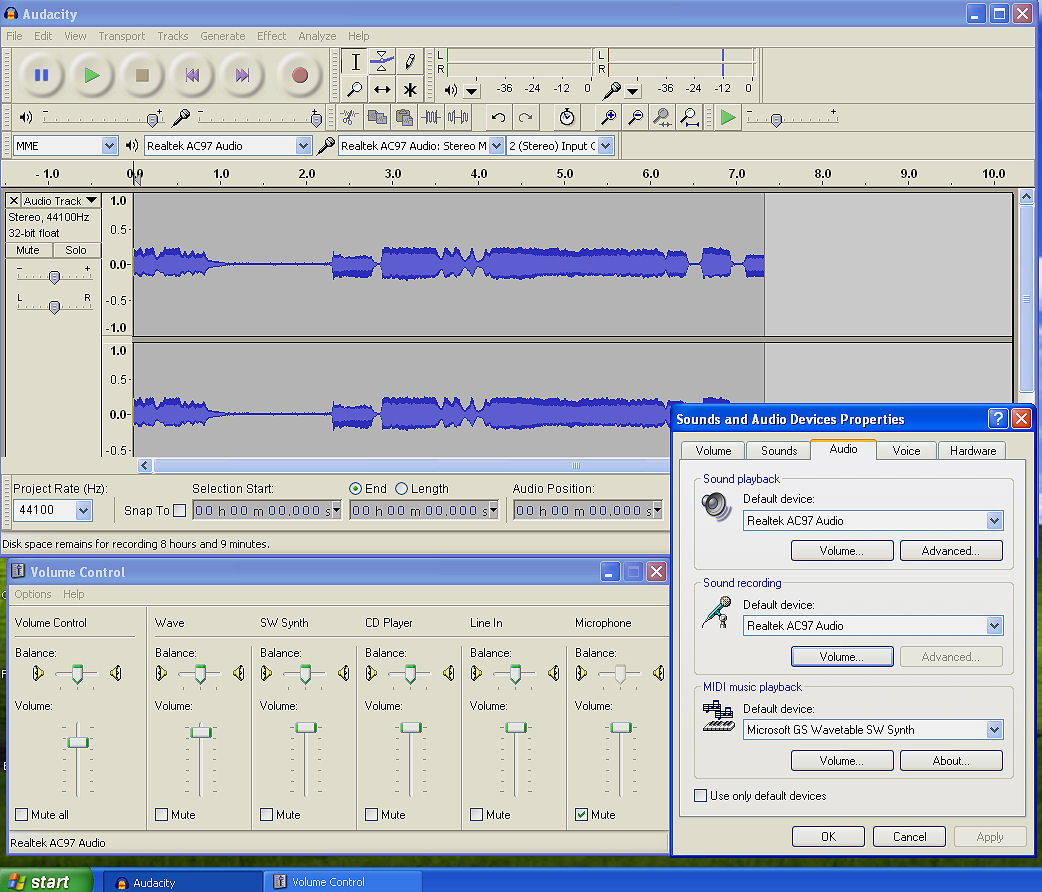
Download the latest free Audacity program.
Open Audacity
Adjust the device options within the 4 panels near the top of the screen
In the 1st panel select MME
In the 2nd panel select Reltek AC97 Audio
In the 3rd panel select Reltek AC97 Audio Mixer
In the 4th panel select 2(Stereo) Input (stereo) Input Channel.
Play your podcast or any music.
Everything that can be heard from the computer can be recorded in the format you wish to use.
From Audacity click the orange record button
If you have a microphone attached tick the mute button within windows.
Adjust the microphone slider to the best volume. To avoid distortion select volume to stop clipping. For help using Audacity search Audacity on the web.
To save as mp3 add the free Audacity plugins from the web.
How do I save audio playing on my computer to a .wav or .mp3 without buying any software.
The Realtek AC97 integrated sound controller
Setup:
Download the latest free Audacity program.
Open Audacity
Adjust the device options within the 4 panels near the top of the screen
In the 1st panel select MME
In the 2nd panel select Reltek AC97 Audio
In the 3rd panel select Reltek AC97 Audio Mixer
In the 4th panel select 2(Stereo) Input (stereo) Input Channel.
Play your podcast or any music.
Everything that can be heard from the computer can be recorded in the format you wish to use.
From Audacity click the orange record button
If you have a microphone attached tick the mute button within windows.
Adjust the microphone slider to the best volume. To avoid distortion select volume to stop clipping. For help using Audacity search Audacity on the web.
To save as mp3 add the free Audacity plugins from the web.
77
Audacity / Re: Saxophone improve playing
Last post by Tony Edge - December 28, 2012, 10:08:28 PMhttp://bluemic.com/yeti/
Hi Dave
Many thanks for the advise Audacity is very helpful not only can you hear your tones but you can actually see your sounds
attack, vibrato, breath control length of notes and even compare the notes with an experts audio track.
For the past few months I have been testing the Blue Yeti Usb microphone
With both the saxophone midi keyboard and Pc sound.
The quality of the recordings are very good and can fully recommend the Yeti USB microphone.
Its rather expensive but so easy to use. I purchased this from Maplin.
The price range from ?110 from Amazon to ?140 from local retail stores.
The Yeti is one of the most advanced and versatile multi-pattern USB microphones available anywhere. Combining three capsules and four different pattern settings, the Yeti is an ultimate tool for creating amazing recordings, directly to your computer. With exceptional sound and performance, the Yeti can capture anything with a clarity & ease unheard of in a USB microphone.
The Yeti features Blue's innovative triple capsule array, allowing for recording in stereo or your choice of three unique patterns, including cardioid, omnidirectional, and bidirectional, giving you recording capabilities usually requiring multiple microphones.
The Yeti utilizes a high quality analog-to-digital converter to send incredible audio fidelity directly into your computer, a built-in headphone amplifier for zero-latency monitoring, and simple controls for headphone volume, pattern selection, instant mute, and microphone gain located directly on the microphone. There are no drivers to install - simply plug the Yeti into your PC or Mac, load up your favorite recording software, and record something amazing.
http://www.youtube.com/watch?v=CbpS27-oFTU
http://www.youtube.com/v/CbpS27-oFTU
Tony Edge
78
Audacity / Saxophone improve playing
Last post by Tony Edge - December 28, 2012, 09:52:23 PM(Daves topic copied from Free computer programs board to the new Audacity board )
Hi Folks
Do you record yourself? you should seriously consider it, its the quickest way to get feed back on how you are doing.
Just google Audacity its a free recording program that can go from simple to high tech recordings. If you have a webcam then that will be sufficient to record or you change use a cheap desk top mic.
It will ask you if you want the program called Lame, the answer is yes because this will allow you to save your recordings as MP3 files.
you can record multiple tracks on top of each other, so one person can record duets, quartets etc
guys go and have fun and let us know how you get on
youtube has loads of tutorials to help
regards
Dave
www.daveplummer.net & facebook staxofsax
Hi Folks
Do you record yourself? you should seriously consider it, its the quickest way to get feed back on how you are doing.
Just google Audacity its a free recording program that can go from simple to high tech recordings. If you have a webcam then that will be sufficient to record or you change use a cheap desk top mic.
It will ask you if you want the program called Lame, the answer is yes because this will allow you to save your recordings as MP3 files.
you can record multiple tracks on top of each other, so one person can record duets, quartets etc
guys go and have fun and let us know how you get on
youtube has loads of tutorials to help
regards
Dave
www.daveplummer.net & facebook staxofsax
79
Audacity / Audacity attempted to use FFmp...
Last post by Tony Edge - December 28, 2012, 09:49:31 PMError message opening a .amr file
Audacity attempted to use FFmpeg to import an audio file, but the libraries were not found.
To use FFmpeg import, go to Preferences > Libraries to download or locate the FFmeg libraries.Audacity ? 1.3.13-beta (ANSI)
A Free Digital Audio Editor
http://audacity.sourceforge.net/
Audacity is a free program written by a worldwide team of volunteer developers. We thank SourceForge.net and Google Code for our project hosting. Audacity is available for Windows 98 and later, Mac OS X, Linux and other Unix-like systems. For Mac OS 9, use version 1.0.0.
This is a Beta version of the program.
1 Select File (located top left hand side of the Audacity window)
2 Preferences, Libraries, FFmpeg Import/export Library
Windows:
3. Download the FFmpeg 0.6.2 installer.
4. Double-click the .exe file to launch the installer.
5. Read the License and click Next, Next and Install to install the required files to "C:\Program Files\FFmpeg for Audacity" (or "C:\Program Files (x86)\FFmpeg for Audacity" on a 64-bit version of Windows).
Alternative zip download for FFmpeg 0.6.2 - extract the contents to a folder called "FFmpeg_v0.6.2_for_Audacity_on_Windows" anywhere on your computer, then follow the instructions below to locate avformat-52.dll in the Libraries Preferences.
6. Run the file ffmpeg_v0.6.exe
For mp3 support download lame_v3.98.exe
To check settings click on help
Audacity ? 1.3.13-beta (ANSI)
A Free Digital Audio Editor
http://audacity.sourceforge.net/
Audacity is a free program written by a worldwide team of volunteer developers. We thank SourceForge.net and Google Code for our project hosting. Audacity is available for Windows 98 and later, Mac OS X, Linux and other Unix-like systems. For Mac OS 9, use version 1.0.0.
This is a Beta version of the program. It may contain bugs and unfinished features. We depend on your feedback: please send bug reports and feature requests to our Feedback address. For help, use the Help menu in the program, view the tips and tricks on our Wiki or visit our Forum.
Credits
Audacity 1.3.13-beta Development Team
Richard Ash
Michael Chinen
James Crook
Roger Dannenberg
Al Dimond
Build Information
File Format Support
libmad
(MP3 Importing)
Enabled
libvorbis
(Ogg Vorbis Import and Export)
Enabled
libid3tag
(ID3 tag support)
Enabled
libflac
(FLAC import and export)
Enabled
libtwolame
(MP2 export)
Enabled
QuickTime
(Import via QuickTime)
Disabled
Core Libraries
libresample
(Sample rate conversion)
Enabled
PortAudio
(Audio playback and recording)
v19
wxWidgets 2.8.11
(ANSI)
Features
Nyquist
(Plug-in support)
Enabled
LADSPA
(Plug-in support)
Enabled
Vamp
(Plug-in support)
Enabled
Audio Units
(Plug-in support)
Disabled
PortMixer
(Sound card mixer support)
Enabled
SoundTouch
(Pitch and Tempo Change support)
Enabled
Build Information
Program build date:
Apr 6 2011
Build type:
Release build
Installation Prefix:
.
Settings folder:
C:\Documents and Settings\tony\Application Data\Audacity
Audacity attempted to use FFmpeg to import an audio file, but the libraries were not found.
To use FFmpeg import, go to Preferences > Libraries to download or locate the FFmeg libraries.Audacity ? 1.3.13-beta (ANSI)
A Free Digital Audio Editor
http://audacity.sourceforge.net/
Audacity is a free program written by a worldwide team of volunteer developers. We thank SourceForge.net and Google Code for our project hosting. Audacity is available for Windows 98 and later, Mac OS X, Linux and other Unix-like systems. For Mac OS 9, use version 1.0.0.
This is a Beta version of the program.
1 Select File (located top left hand side of the Audacity window)
2 Preferences, Libraries, FFmpeg Import/export Library
Windows:
3. Download the FFmpeg 0.6.2 installer.
4. Double-click the .exe file to launch the installer.
5. Read the License and click Next, Next and Install to install the required files to "C:\Program Files\FFmpeg for Audacity" (or "C:\Program Files (x86)\FFmpeg for Audacity" on a 64-bit version of Windows).
Alternative zip download for FFmpeg 0.6.2 - extract the contents to a folder called "FFmpeg_v0.6.2_for_Audacity_on_Windows" anywhere on your computer, then follow the instructions below to locate avformat-52.dll in the Libraries Preferences.
6. Run the file ffmpeg_v0.6.exe
For mp3 support download lame_v3.98.exe
To check settings click on help
Audacity ? 1.3.13-beta (ANSI)
A Free Digital Audio Editor
http://audacity.sourceforge.net/
Audacity is a free program written by a worldwide team of volunteer developers. We thank SourceForge.net and Google Code for our project hosting. Audacity is available for Windows 98 and later, Mac OS X, Linux and other Unix-like systems. For Mac OS 9, use version 1.0.0.
This is a Beta version of the program. It may contain bugs and unfinished features. We depend on your feedback: please send bug reports and feature requests to our Feedback address. For help, use the Help menu in the program, view the tips and tricks on our Wiki or visit our Forum.
Credits
Audacity 1.3.13-beta Development Team
Richard Ash
Michael Chinen
James Crook
Roger Dannenberg
Al Dimond
Build Information
File Format Support
libmad
(MP3 Importing)
Enabled
libvorbis
(Ogg Vorbis Import and Export)
Enabled
libid3tag
(ID3 tag support)
Enabled
libflac
(FLAC import and export)
Enabled
libtwolame
(MP2 export)
Enabled
QuickTime
(Import via QuickTime)
Disabled
Core Libraries
libresample
(Sample rate conversion)
Enabled
PortAudio
(Audio playback and recording)
v19
wxWidgets 2.8.11
(ANSI)
Features
Nyquist
(Plug-in support)
Enabled
LADSPA
(Plug-in support)
Enabled
Vamp
(Plug-in support)
Enabled
Audio Units
(Plug-in support)
Disabled
PortMixer
(Sound card mixer support)
Enabled
SoundTouch
(Pitch and Tempo Change support)
Enabled
Build Information
Program build date:
Apr 6 2011
Build type:
Release build
Installation Prefix:
.
Settings folder:
C:\Documents and Settings\tony\Application Data\Audacity
80
Audacity / How do I capture streaming aud...
Last post by Tony Edge - December 28, 2012, 09:29:01 PMCapture audio from PC.
http://learnsax.co.uk/docs/Capture-audio-from-PC.pdf
How do I capture streaming audio from Windows XP computer?
Many pc audio card have different ways of capturing sound.
Users have asked many questions using the Gigabyte Nvidia card with
the Realtek HD sound effect manager.
Setup:
From windows control panel select Sounds and Audio Devices.
Hardware.
Select Realtek High Definition Audio.
From Sounds and Audio Devices
Select.
Default device Realtek HD Audio output.
Sound realtek HD Audio input Adjust Volume Recording Control.
From the control panel select Realtek HD Sound effect manager
Select the spanner under record click the speaker icon and turn the record
Level knob.
Download the latest free Audacity program.
Open Audacity
Adjust the device options within the panels
And select windows (speaker) MME and change to windows direct sound.
Select Realtek HD Audio output (next to the microphone icon).
In the 3rd panel select Realtek HD Audio input: stereo.
In the 4th panel select 2(Stereo) Input (stereo) Input Channel.
Play your podcast or any music.
Everything that can be heard from the computer can be recorded in the format you wish to use.
From Audacity click the orange record button
Adjust the microphone slider to the best volume. To avoid distortion select volume to stop clipping. For help using Audacity check out Audacity on youtube.
To save as mp3 add the free Audacity plugins from the web.
http://learnsax.co.uk/docs/Capture-audio-from-PC.pdf
How do I capture streaming audio from Windows XP computer?
Many pc audio card have different ways of capturing sound.
Users have asked many questions using the Gigabyte Nvidia card with
the Realtek HD sound effect manager.
Setup:
From windows control panel select Sounds and Audio Devices.
Hardware.
Select Realtek High Definition Audio.
From Sounds and Audio Devices
Select.
Default device Realtek HD Audio output.
Sound realtek HD Audio input Adjust Volume Recording Control.
From the control panel select Realtek HD Sound effect manager
Select the spanner under record click the speaker icon and turn the record
Level knob.
Download the latest free Audacity program.
Open Audacity
Adjust the device options within the panels
And select windows (speaker) MME and change to windows direct sound.
Select Realtek HD Audio output (next to the microphone icon).
In the 3rd panel select Realtek HD Audio input: stereo.
In the 4th panel select 2(Stereo) Input (stereo) Input Channel.
Play your podcast or any music.
Everything that can be heard from the computer can be recorded in the format you wish to use.
From Audacity click the orange record button
Adjust the microphone slider to the best volume. To avoid distortion select volume to stop clipping. For help using Audacity check out Audacity on youtube.
To save as mp3 add the free Audacity plugins from the web.